The TUI
The interactive terminal interface — home screen, input, slash commands, and keyboard control.
Running scira with no question opens the interactive TUI: a home screen with your session history, a research timeline, and an input box that drives everything. This page covers how to move around it.
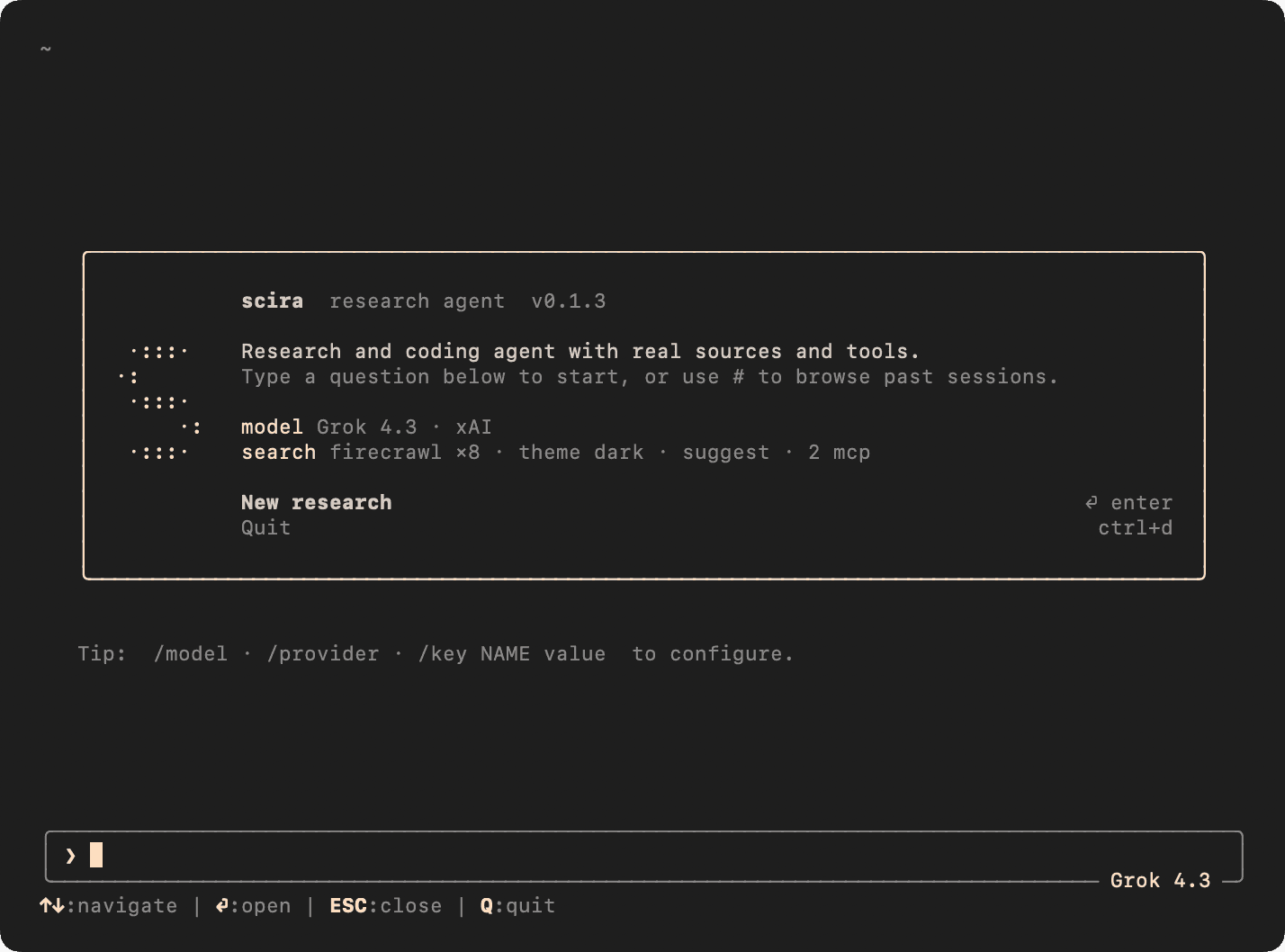
The home screen
scira lands you here. Type a question and press Enter to start a run, or pick one of the standing actions:
| Action | What it does |
|---|---|
| Type a question | Starts a new research run from the input box |
| Browse sessions | Opens the full list of past runs to resume |
| New research | Prompts you to type a question |
| Quit | Exits the TUI |
Use ↑ ↓ to move between the actions and Enter to select. Type # to search your past sessions by title inline.
Full-research mode
Phrasing like "deep research…", "compare…", "write a report on…", or "in-depth…" automatically runs the full research harness instead of a quick answer. You can also force it with /plan first.
The input box
The input box is a single line with real editing. It keeps a history of what you've typed, so an empty box plus ↑ walks back through previous prompts.
Editing keys
| Key | Action |
|---|---|
| ← → | Move the cursor |
| Ctrl+A / Ctrl+B | Jump to start of line |
| Ctrl+E / Ctrl+F | Jump to end of line |
| Ctrl+W | Delete the previous word |
| Esc | Clear the input |
| ↑ ↓ | Cycle input history (empty box) |
Mention a file with @
Type @ followed by a path to attach a file's contents to your message. An autocomplete menu filters as you type; Enter accepts the highlighted file.
explain what @src/agent/research-agent.ts does and suggest a refactor@ mentions skip .git, node_modules, dist, and .scira, and each file is truncated to 20,000 characters.
Reference a past run with #
Type # to search and pull in an earlier session by title — useful for continuing where a previous run left off.
Reading the timeline
While a run is active, each tool call appears in the timeline with an icon so you can scan what the agent is doing:
| Icon | Tool |
|---|---|
⌕ | webSearch / grepWorkspace |
↗ | readUrl |
▤ | readFile / listWorkspaceDir |
✎ | writeFile / editFile |
◎ | createClaim |
✓ | verifyClaim |
$ | bash |
★ | listSkills / readSkill |
Navigate tool output
Long tool output is grouped and collapsible so the timeline stays readable.
| Key | Action |
|---|---|
| PageUp / PageDown | Scroll the timeline |
| c | Collapse or expand groups |
| [ / ] | Focus the previous / next group |
| Esc | Unfocus the current group |
| Esc (while running) | Abort the current turn |
Slash commands
Type / to open the command menu; it filters as you type and Enter runs the highlighted command. Commands that take an argument (like /key or /theme) get a trailing space instead of running, so you can finish the line.
Session and run
| Command | Description |
|---|---|
/home | Go to the home screen |
/new | Start a new research run |
/back | Return to the sessions list |
/rerun | Run the research agent again for this run |
/rename <title> | Set a title for the session |
/plan | Toggle plan mode (explore and plan before changes) |
/stop | Abort the running agent turn |
/quit | Quit the TUI |
Inspect the work
| Command | Description |
|---|---|
/report | Show the generated report.md in the timeline |
/sources | List the run's gathered sources with links |
/claims | List all claims with id, confidence, status, and text |
/why <claim-id> | Show full detail for a single claim |
/usage | Show token usage per model for this session |
/copy | Copy the last answer (or report) to the clipboard |
Configure
| Command | Description |
|---|---|
/model | Open the model selector |
/llm | Switch the LLM provider (gateway, xai, workers-ai) |
/provider | Open the search provider selector |
/theme <mode> | Set the theme: dark, light, or auto |
/key <NAME> <value> | Save an API key to ~/.scira/.env |
/keys | Show API key status and signup links |
/mcp | Manage MCP servers (see below) |
/help | Show commands and keyboard shortcuts |
MCP from the TUI
/mcp opens a manager where ↑ ↓ move between servers, Space or Enter toggles one on or off, and x removes it. You can also run the subcommands inline:
/mcp list
/mcp enable exa
/mcp add http exa https://mcp.exa.ai/mcp
Themes
The TUI follows your terminal's light or dark appearance by default. Override it with /theme:
/theme dark
/theme light
/theme auto
The accent color (cream) and prompt marker stay consistent across both.
Quitting
Press q on the home screen with an empty input, Ctrl+D with an empty input, or run /quit from anywhere.